
Version 1.0 · Mac + WindowsQuick Start
Thanks for getting Gigantic. It's a new front end and host for your own licensed copy of Native Instruments Massive: Massive still makes every sound, and Gigantic gives it a modern interface and a lot of new tools. This guide gets you playing in five minutes.
1What you need
- Massive, installed and authorised in Native Access, with its VST3 (Gigantic uses it for Massive's sounds).
- Mac: macOS 12 or later. Made and tested on Apple Silicon (M1 or newer).
- Windows: Windows 10 or 11, 64-bit. Massive's VST3 in C:\Program Files\Common Files\VST3.
- A DAW (Logic, Ableton Live, FL Studio and others), or just the standalone app.
2Install
- Open your order email from The Signal Supply and download the installer for your computer.
- Mac: open it and follow the steps (under Customize you can untick formats you don't want). It installs the Gigantic app in Applications, plus the AU and VST3 plug-ins: Gigantic (instrument) and Gigantic FX (effect).
- Windows: run it. If Windows says "Windows protected your PC", click More info › Run anyway. It installs the app (Start menu) and the VST3 plug-ins.
- Open Gigantic. It finds your Massive, then shows the Terms: scroll down and click Accept.
In your DAW: Gigantic is listed under Signal Supply. Gigantic FX is an audio effect (in Logic: Audio FX › Audio Units › MIDI-controlled). On Windows, use the VST3. Not there? Rescan your plug-ins or restart the DAW.
3Find your way around
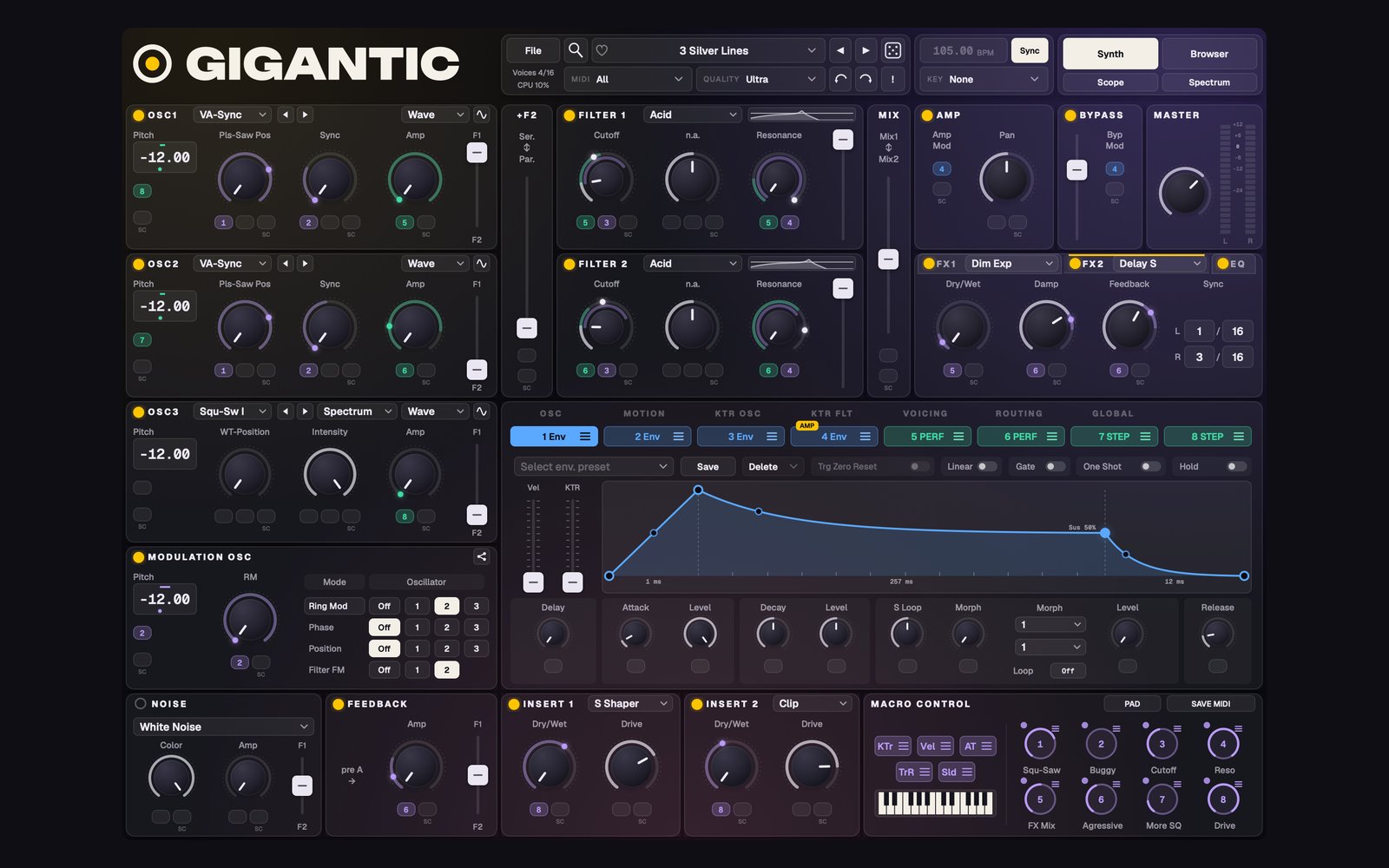
Top bar
The sound's name (click it, or ◀ ▶, to change sounds), the dice for a random sound, undo / redo, and Synth / Browser to switch views.
The synth
Massive's sections as you know them. The tabs along the middle (OSC, MOTION, ROUTING…) and the eight mod slots open the pages below.
4Five things to try
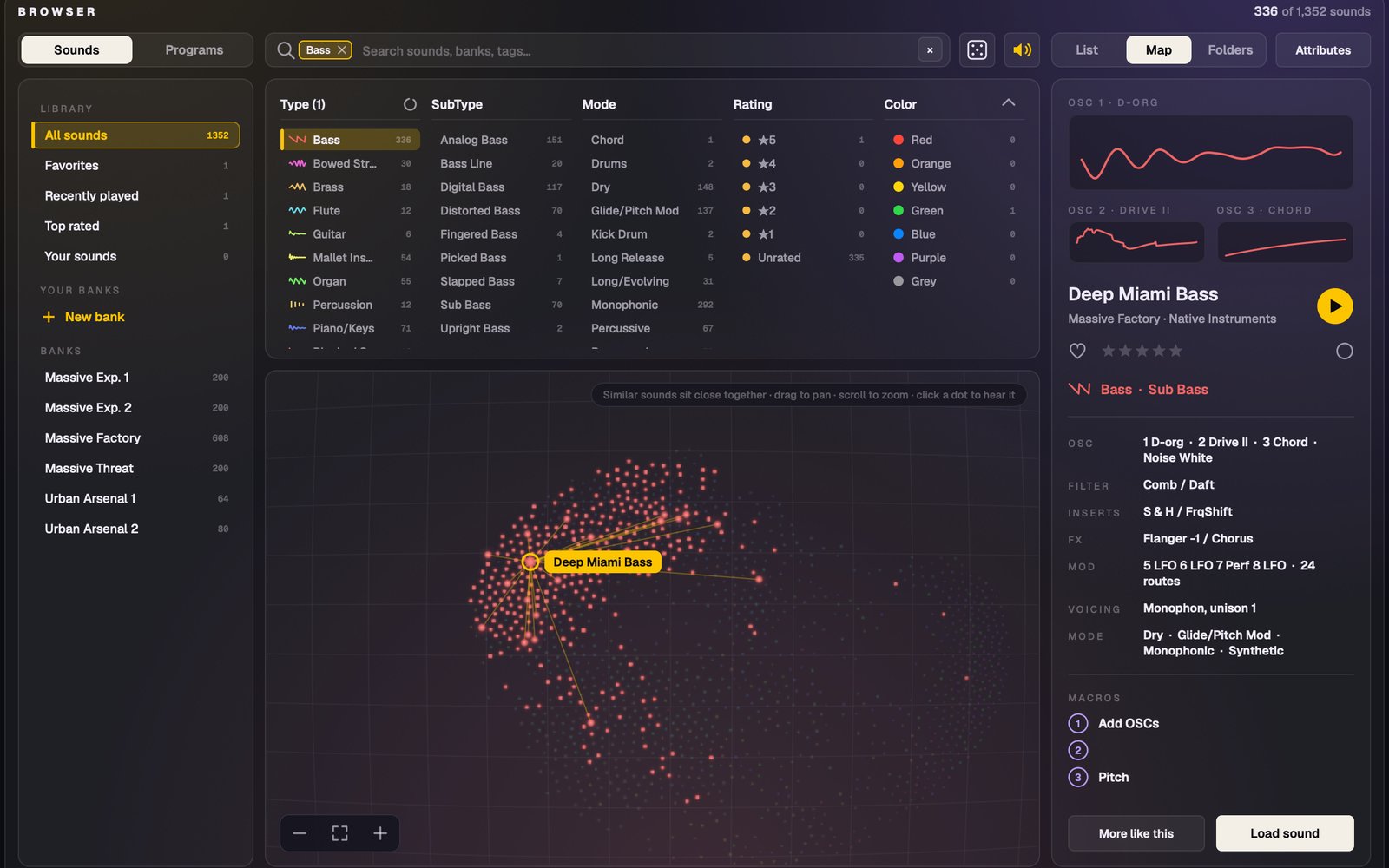
01 · Browse your Massive sounds
Click Browser. One click shows what's inside a sound without loading it; double-click loads it. With the speaker on, you hear each sound before loading it. Try the Map view and More like this, and the dice in the search row for a random pick.
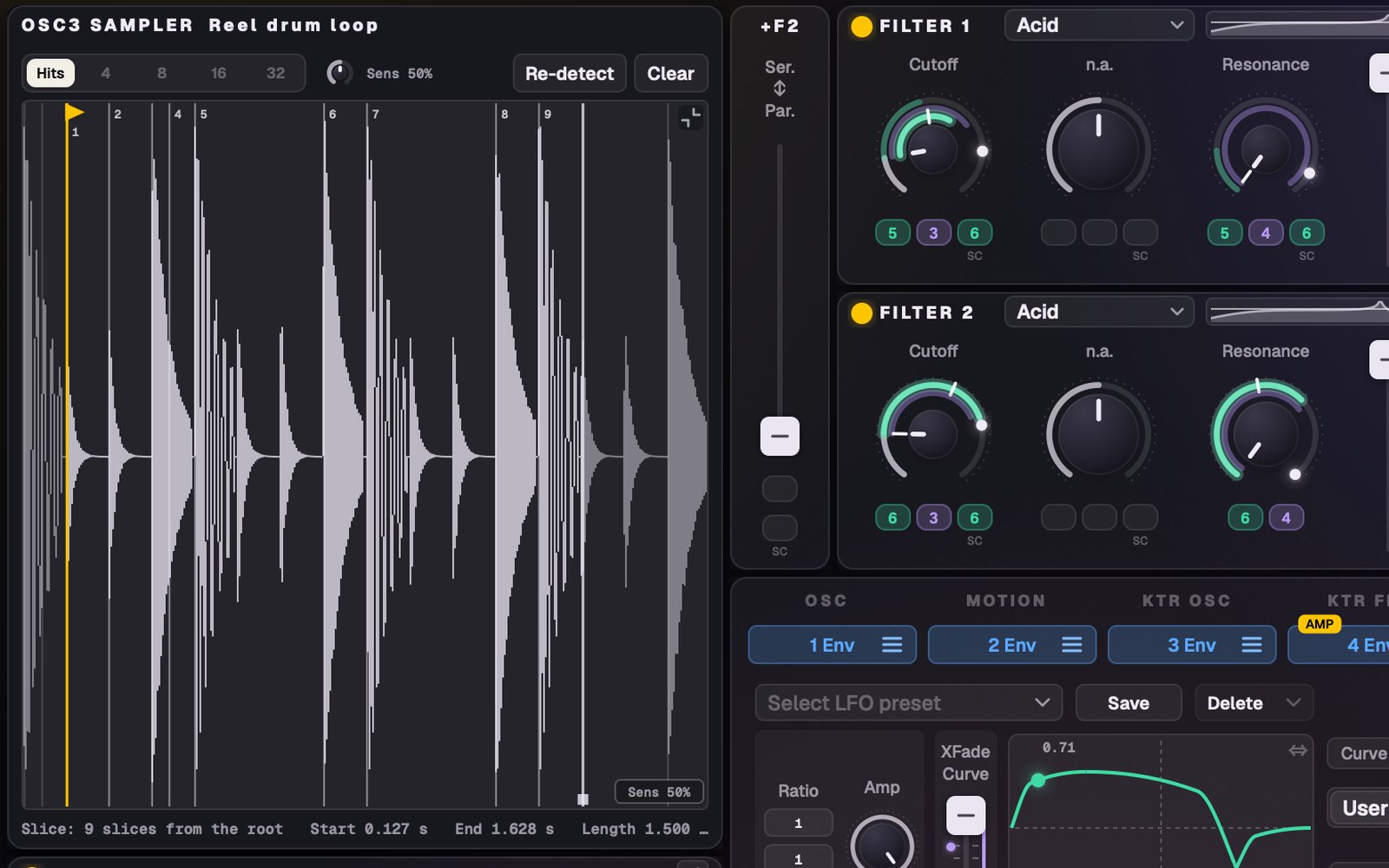
02 · Drop audio on an oscillator
Drag any audio file over an oscillator: three targets appear. Drop it on Sampler (a loop plays in time), Granular (a cloud of grains) or Wavetable (it becomes a playable table). It runs through the sound's filters and effects like any oscillator.
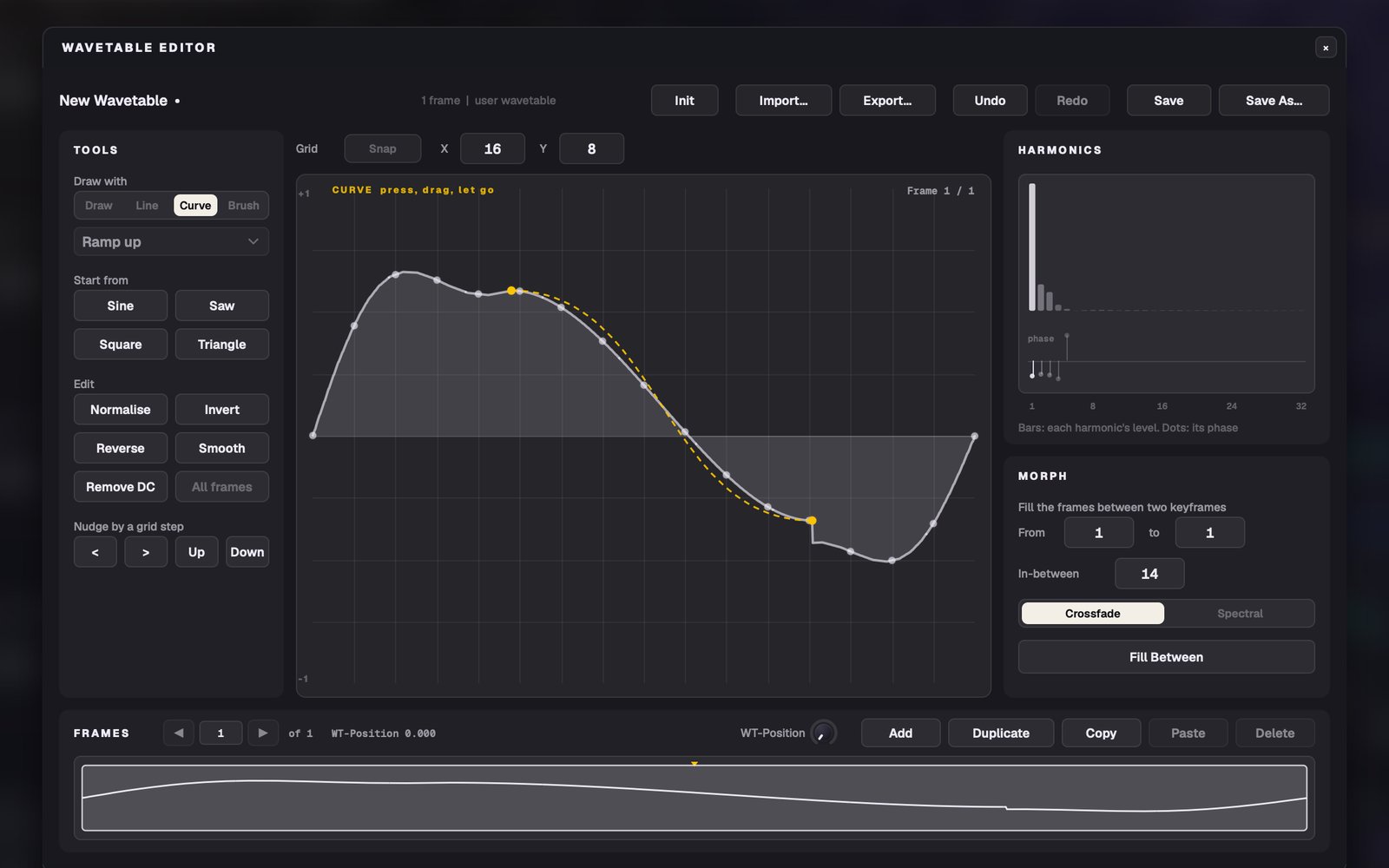
03 · Draw a wavetable
Click the small wave icon at the right of an oscillator's header, then the pencil (or New Wavetable… in the wavetable menu). Draw with the brushes while you play: held notes change as you draw.
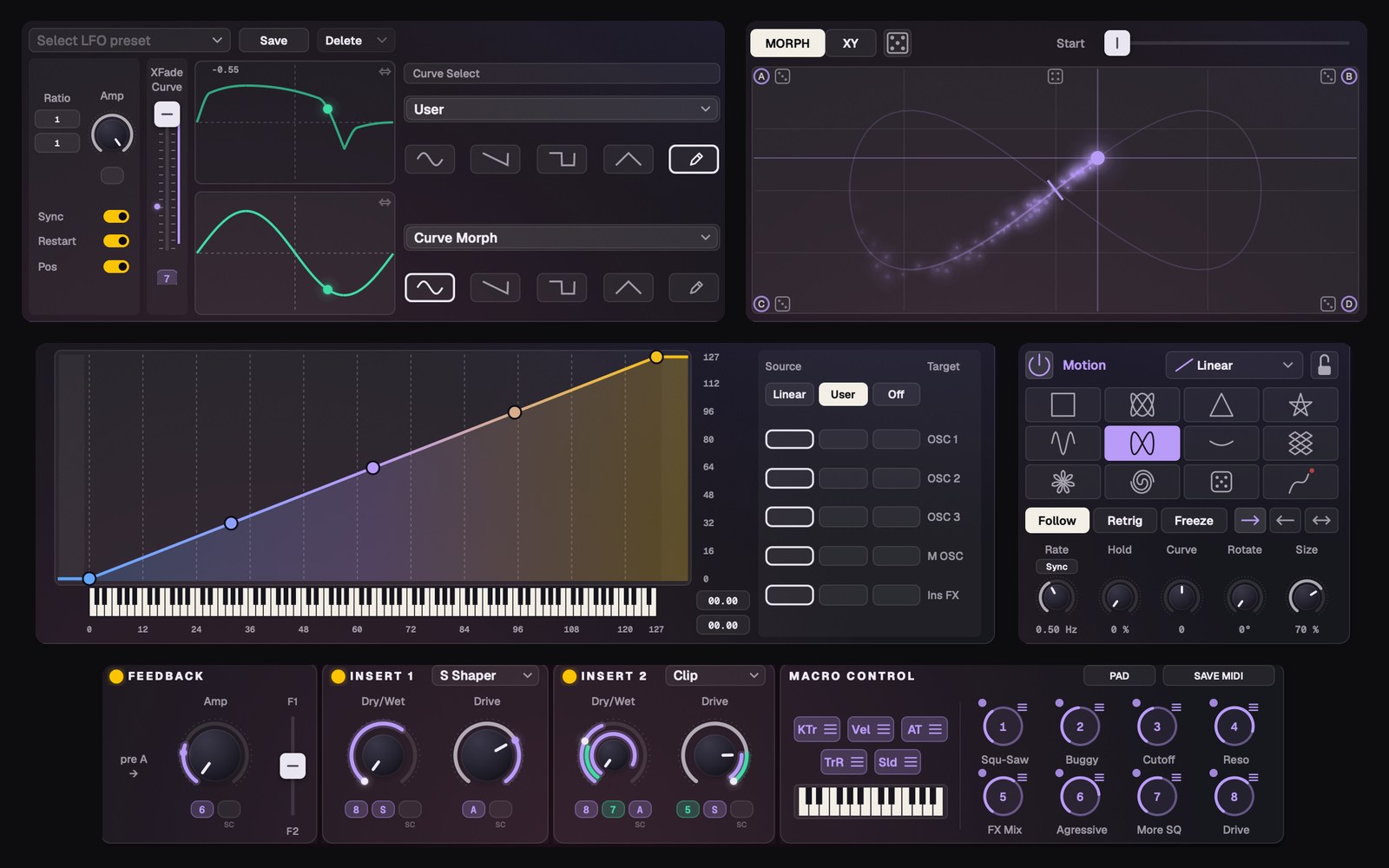
04 · Make it move
Open the MOTION tab. Pick a shape: the dot travels through the pad and blends your 8 macros across the four corners. Click a corner letter to set that corner. In an LFO slot, pick User and the pencil to draw your own curve.
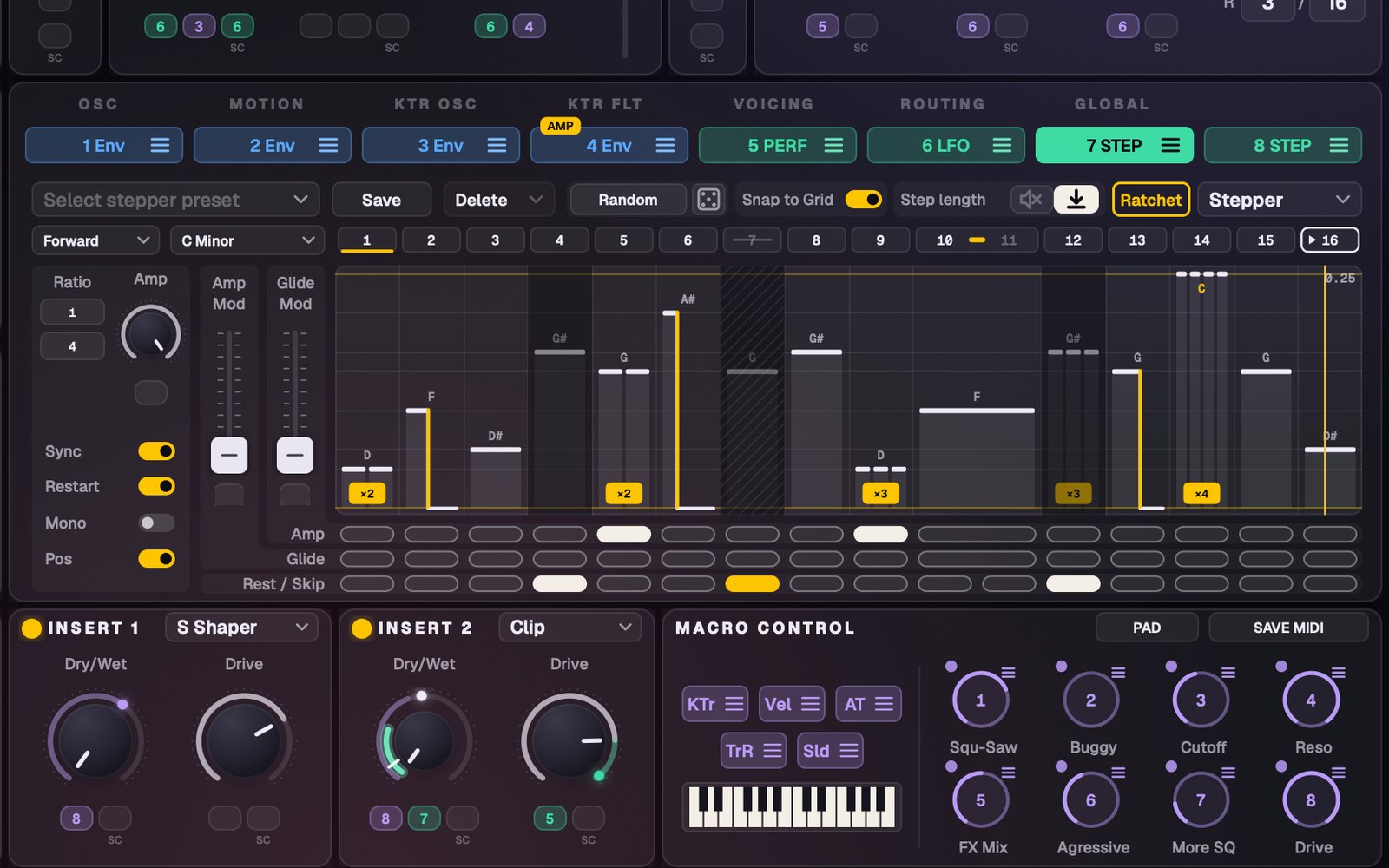
05 · Sequence it
Switch a mod slot (5–8) to Stepper or Performer. Try Ratchet (1–4 hits per step), rests and skips, the direction menu, and snapping steps to a key.
Bonus: put Gigantic FX on an audio track: your audio becomes the sound's source, played through its filters, effects and modulation. Load a preset with a moving filter and set an envelope's Trigger to Hits.
5Found a bug? Tell us
File › Report a Bug… (also in About):
- Say what you did, what you expected, and what happened instead.
- About a particular sound? Tick Include the current sound.
- Click Send. It goes straight to The Signal Supply. Add your email if you'd like a reply.
Offline? Save Report… puts a .zip on your Desktop to send later. If Gigantic crashes, it offers to report it next time it opens: please say yes.
6Learn more
- Hover over anything for a tip explaining what it does (File › Show Tooltips turns them on or off).
- The Gigantic Manual (PDF, next to the download) goes through every page and every feature, with a FAQ.
- Mac or Windows: where this guide says Cmd or Option, use Ctrl or Alt on Windows.
7Good to know
- Your sounds are saved in Music › Gigantic on Mac and Windows (Sounds, Wavetables, Samples, Noises). Back that folder up.
- Sharing a sound: just send the .gigantic file. It carries its own samples and drawn wavetables. If an older sound is missing one, Gigantic lets you Locate… it.
- Updates: when a new version is out, the File button gets a dot and the File menu a notice. Download opens your downloads; run the new installer over the old one. Your sounds and settings stay. Gigantic never installs anything by itself. The same check adds one to an anonymous weekly count (version, OS and chip only); Check for updates in Options turns both off.
- Your Massive presets don't change. Everything Gigantic adds starts switched off.
Have fun with it. Questions or ideas: File › Report a Bug…, or thesignalsupply.com/gigantic.